How do software updates work?
Keeping your vehicle software current helps maintain functionality, safety, and the overall ownership experience. Below is a clear, practical guide to the ways updates are typically
delivered, what they change, and how to prepare — plus reliable next steps to confirm how updates are handled for your vehicle.
Overview: what a software update can do
Software updates can range from simple map and navigation data refreshes to deeper changes such as infotainment interface improvements, bug fixes, calibration adjustments for driver-assist
systems, or energy-management refinements for electric vehicles. Updates are a way for manufacturers to improve functionality after a vehicle leaves the factory without requiring physical
hardware changes.
Which specific systems receive updates — and whether updates happen remotely — depends on the vehicle model, software architecture, and the services you have activated. Availability varies
by trim/package; confirm with your dealer.
Common delivery methods

Over‑the‑Air (OTA)
OTA updates are delivered wirelessly to the vehicle via cellular or Wi‑Fi connections. When supported, OTA is the most convenient method: updates can download and install with minimal
dealer involvement, often scheduled for times when the vehicle is parked and charging. If you are unsure whether this vehicle supports OTA updates, check the owner's manual, the in‑vehicle
settings menu, or contact your dealer. Availability varies by trim/package; confirm with your dealer.

Dealer / Service Center Updates
When OTA is not available or for larger software upgrades, dealers perform updates using diagnostic tools and manufacturer software. This approach ensures technicians can validate
calibration and run checks after installation. Plan for a service appointment if a dealer visit is required.

Manual / USB Updates
Some systems allow owners to download updates to a USB drive from the manufacturer's website and then install them into the vehicle. This method is less common for deep system firmware but
may be used for map or media updates. Check official Hyundai resources or your dealer for approved files and installation steps. Availability varies by trim/package; confirm with your
dealer.
Typical update process (what to expect)
-
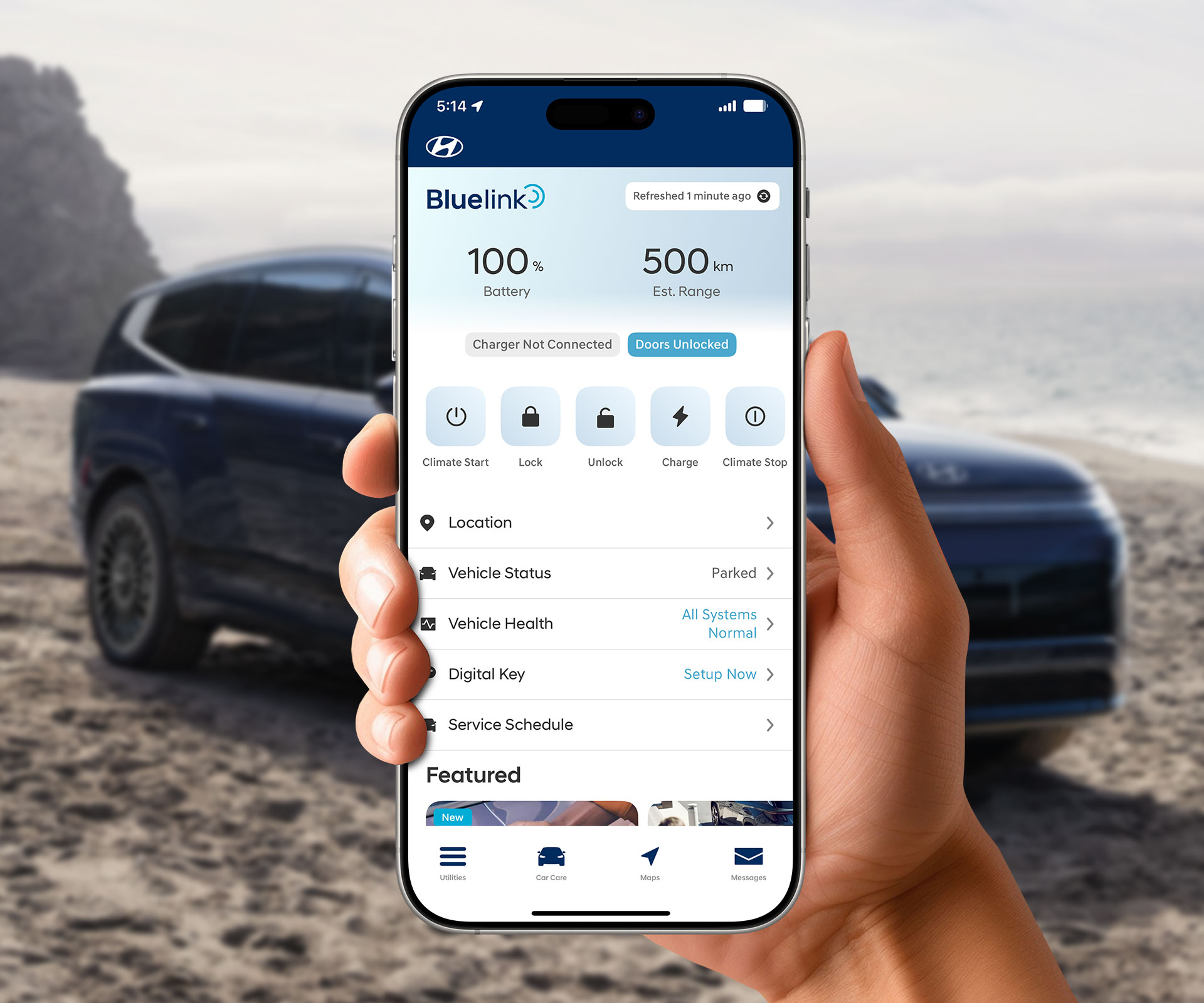
Notification: If enabled, the vehicle or the manufacturer's app may notify you that an update is available. Otherwise, your dealer may contact you or post
announcements through official channels. If you don't receive notifications, check the vehicle's settings or contact your dealer. -
Download: The update downloads either to the vehicle via its connection or to a USB from the manufacturer's website. For large updates, a stable Wi‑Fi connection or a
full charge may be recommended. -
Installation: Installation may require the vehicle to be parked and powered in a specific state (e.g., ignition off, charging). The process can take from several
minutes to over an hour depending on the update scope. -
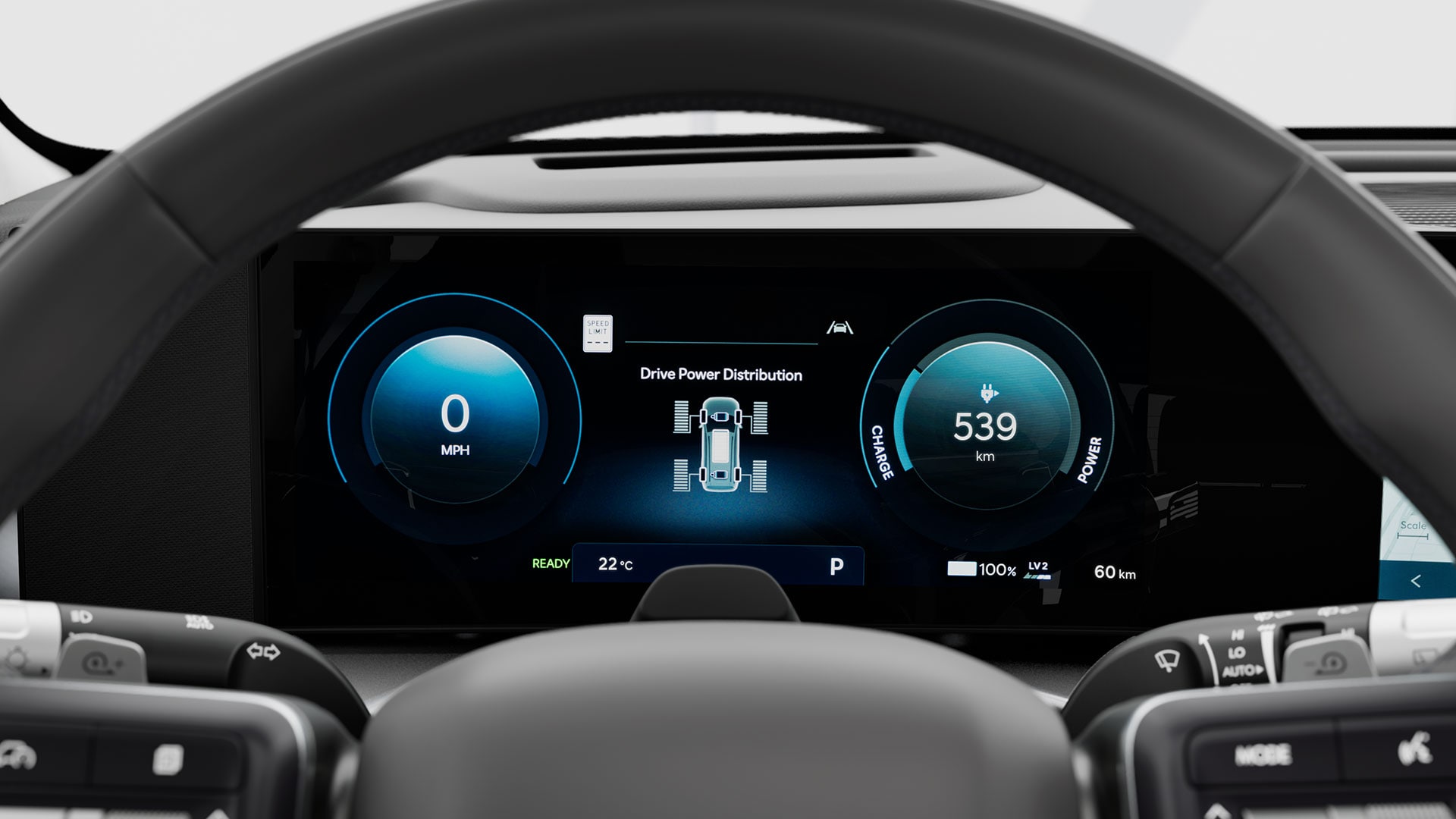
Verification: After installation, the vehicle typically runs self‑checks to verify the update applied correctly. Dealers may perform additional diagnostics if the
update was done in service.
What to do before and during an update
Prepare by ensuring your vehicle has sufficient battery charge and, where applicable, a stable Wi‑Fi connection. Avoid turning the vehicle off, unplugging the USB drive, or interrupting
the connection mid‑install — interruptions can extend the process or trigger a visit to the dealer. If you see status messages on the display, follow them exactly; for any uncertainty,
contact your authorized dealer for guidance.
Troubleshooting & safety
If an update fails or the vehicle shows unexpected behavior afterward, take these steps: (1) make note of any error messages, (2) safely park the vehicle and power it down if advised, and
(3) contact your authorized dealer or the manufacturer's support line. For issues involving driver‑assist systems or charging, schedule a dealer inspection. Availability of specific
recovery procedures varies by model and software; confirm with your dealer.
How to confirm the exact update method for your vehicle
Because update capabilities and delivery channels differ across models, trims, and regions, use one or more of the following to confirm how your vehicle receives updates:
- Consult the owner’s manual or the in‑vehicle system’s software/update menu.
- Contact your authorized dealer and ask whether OTA updates are supported and whether any subscriptions or connected services are required.
- Check official Hyundai owner portals or support pages for documented procedures and downloadable update files.
Availability varies by trim/package; confirm with your dealer.
Where to get official help
For accurate, vehicle‑specific guidance use official Hyundai channels: your authorized dealer, the vehicle's owner documentation, or Hyundai customer support. Those sources can confirm
whether your particular vehicle supports OTA updates, whether a connected services subscription is required, and any recommended pre‑installation steps.